How to Access Your PC From Anywhere, From Your Phone or Laptop
Use your home PC from your phone, laptop, Mac or tablet, even on Jio or Airtel. A simple step-by-step guide using free Remote Desktop and a Transit IP.
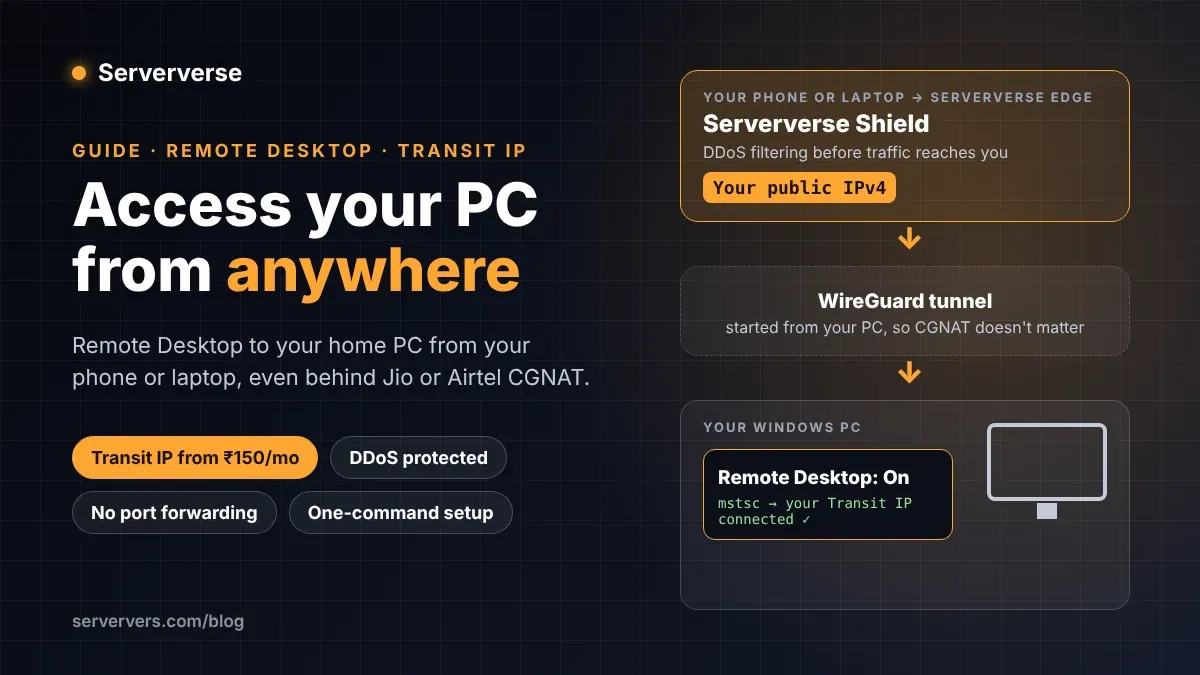
Want to use your home PC from your phone, a laptop at college, your office computer, a Mac or a tablet, as if you were sitting in front of it? Windows already has a built-in tool for this called Remote Desktop. The hard part is reaching your PC over the internet, because most home connections in India, including Jio and Airtel, sit behind CGNAT. Your PC has no public IP, and port forwarding on your router does nothing.
This guide fixes that with Serververse Transit IP. One PowerShell command gives your PC its own public IPv4 address. Then you turn on Remote Desktop and log in from anywhere with your Windows username and password. No static IP from your ISP, no router settings, and no third-party app in the middle.
The short version:
- Get a Serververse Transit IP.
- Run one command in PowerShell on your home PC.
- Turn on Remote Desktop in Windows settings.
- Open the Windows App or Remote Desktop on your phone or laptop, enter your Transit IP and log in with your Windows username and password.
Why use Serververse Transit IP?
Transit IP gives your PC an address the whole internet can reach. Here is what you get:
- A dedicated public IPv4 that is yours alone, with every port open
- Works behind CGNAT on Jio, Airtel and other ISPs, with no static IP or port forwarding needed
- One command on Windows: paste it into PowerShell and your PC is online
- DDoS protection included: every Transit IP is filtered by Serververse Shield at no extra cost
- Your own dashboard at labs.serververs.com with bandwidth stats and email alerts
- Mumbai edge on a 1 Gbps uplink with unmetered bandwidth
- More than remote access: the same IP can also run a game server, a website or a VPS on your PC
- From ₹150 a month per IP
How long does it take? About 10 to 15 minutes, start to finish.
How it works
Your PC opens an outgoing, encrypted WireGuard tunnel to the Serververse edge in Mumbai. Your Transit IP lives on that edge and is routed down the tunnel to your PC. Because the tunnel starts from your side, CGNAT doesn't matter:
Your phone or laptop (anywhere)
   ↓  Remote Desktop to your Transit IP
Serververse edge, Mumbai (Serververse Shield DDoS filtering)
   ↓
WireGuard tunnel (started from your PC)
   ↓
Your Windows PC at home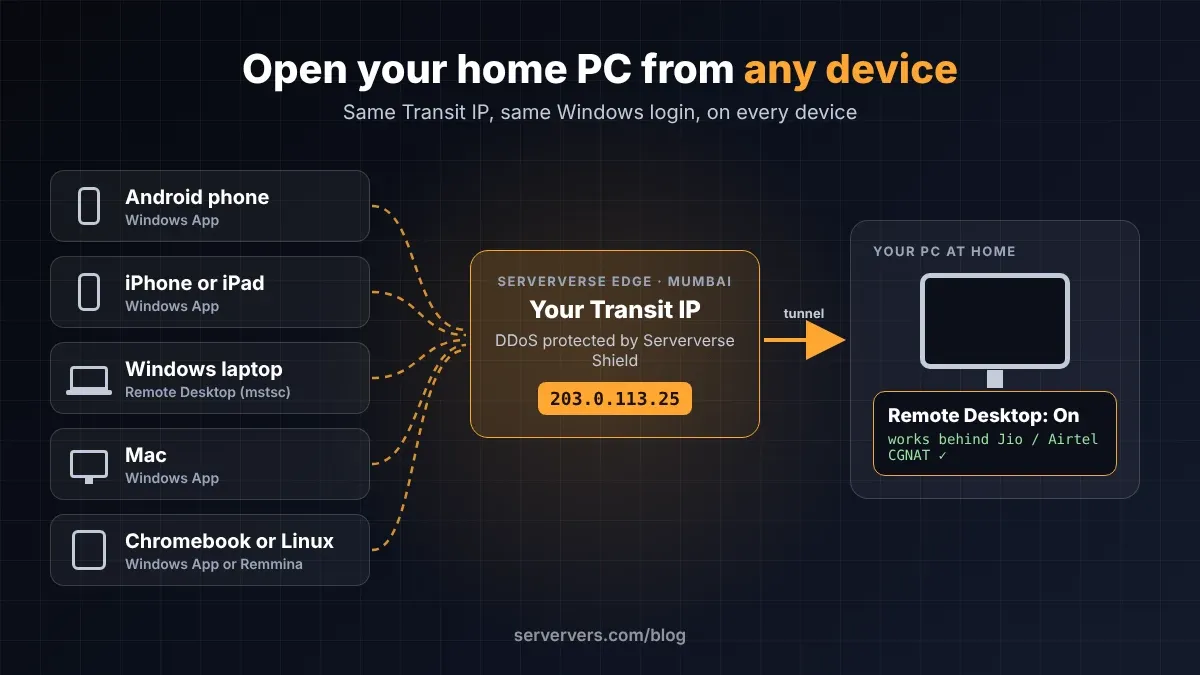
What you need
- Windows 10 or 11 Pro on the PC you want to reach. Remote Desktop can only accept connections on Pro, Enterprise or Education. On Windows Home? See the Windows Home section below.
- A Serververse Transit IP from the store
- Another device to connect from: an Android phone, iPhone, iPad, Mac, Chromebook, Linux computer or another Windows PC
- The home PC switched on and connected to the internet whenever you want to use it
Not sure which edition you have? Press Windows + R, type winver and press Enter.
Step 1: Get your Transit IP
- Order a Transit IP from the Serververse store.
- Open your dashboard at labs.serververs.com.
- Note down your Transit IP (it looks like
203.0.113.25) and copy the Windows setup command with your token.
The token can be used only once, so keep it private and don't share screenshots of it.
Step 2: Connect your PC with one command
On the home PC, open the Start menu, type PowerShell, right-click it and choose Run as administrator. Paste the command from your dashboard. It looks like this:
& ([scriptblock]::Create((irm https://labs-api.serververs.com/api/v0.3/provision/install.ps1))) -Token YOUR_TOKENThe installer sets up the tunnel and adds your Transit IP to the PC. When it finishes, check that it's online:
& ([scriptblock]::Create((irm https://labs-api.serververs.com/api/v0.3/provision/install.ps1))) -StatusYour PC now has a public IP. Nothing is open to the internet until you turn on a service, which is the next step.
Step 3: Turn on Remote Desktop
- Open Settings → System → Remote Desktop.
- Turn Remote Desktop on and click Confirm.
- Open the dropdown next to it and make sure "Require devices to use Network Level Authentication to connect" is ticked. It is on by default. Leave it on.
Windows opens the Remote Desktop port (3389) in its firewall automatically.
Step 4: Create a login for remote access
When you connect, Windows asks for a username and password. This is a normal Windows account password, the one you'd type on the lock screen. Transit IP does not create a separate password.
Two things confuse most people here:
- Your PIN does not work over Remote Desktop. You need the actual password.
- If you sign in with a Microsoft account (an email address), your username is that email and your password is your Microsoft account password.
The simplest and safest way is to create a separate account just for remote access. In the same admin PowerShell window, run:
net user remoteuser * /add
net localgroup "Remote Desktop Users" remoteuser /add
The first command asks you to type a password twice. Nothing appears on screen while you type, which is normal. Choose a long password that you don't use anywhere else, at least 12 characters with a mix of words, numbers and symbols. Bots constantly try common passwords against Remote Desktop, so this matters.
Your remote login is now:
- Username:
remoteuser - Password: the one you just set
Prefer to use your main account instead? Run whoami in PowerShell to see its exact username, and make sure it has a password (not only a PIN). If Windows keeps rejecting your password, go to Settings → Accounts → Sign-in options and turn off "For improved security, only allow Windows Hello sign-in for Microsoft accounts on this device".
Step 5: Protect your PC
Don't skip this step. Remote Desktop on a public IP gets found by bots within minutes, and they will keep guessing passwords. These settings stop that from ever working.
Lock out password guessers. This locks an account for 15 minutes after 5 wrong passwords:
net accounts /lockoutthreshold:5 /lockoutwindow:15 /lockoutduration:15Allow only your own IPs (strongly recommended if you can). If you always connect from the same places, such as your office or college network, allow Remote Desktop only from those addresses. Find your IP at the place you'll connect from by searching "what is my IP", then run this on the home PC:
Set-NetFirewallRule -DisplayGroup "Remote Desktop" -RemoteAddress 198.51.100.10,198.51.100.20Mobile data IPs change often, so this works best for fixed networks. To allow every IP again later, run the same command with -RemoteAddress Any.
Keep Windows updated. Remote Desktop security fixes arrive through Windows Update, so leave automatic updates on.
Step 6: Connect from any device
You can open your home PC from almost any phone, tablet or computer. On every device you need the same three things: your Transit IP, your username and your password. The first time you connect, you may see a certificate warning. It appears because your PC uses its own certificate, which is normal, so accept it and continue.
From a Windows laptop or PC
- Press Windows + R, type
mstscand press Enter. This opens Remote Desktop Connection, which is already built into Windows. - In Computer, type your Transit IP and click Connect.
- Enter your username and password. If you use
remoteuser, you may need to type it as.\remoteuser.
From an Android phone or tablet
- Install Microsoft's free Windows App from the Google Play Store.
- Tap +, choose Add PC, and enter your Transit IP.
- Tap the PC and log in with your username and password.
Tip: turn your phone sideways for a bigger desktop, and use two fingers to zoom.
From an iPhone or iPad
- Install Microsoft's free Windows App from the App Store.
- Tap +, choose Add PC, and enter your Transit IP.
- Tap the PC and log in with your username and password.
From a Mac
- Install Microsoft's free Windows App from the Mac App Store.
- Click +, choose Add PC, and enter your Transit IP as the PC name.
- Double-click the PC and log in with your username and password.
From a Chromebook
Most Chromebooks can run Android apps. Install Windows App from the Google Play Store and follow the Android steps above.
From a Linux computer
Install Remmina, a free remote desktop app that is available in most Linux app stores. Create a new connection, choose RDP, enter your Transit IP, username and password, and connect.
Once you're connected, you'll see your home PC's desktop. You can open your files and run your apps, and on most devices you can copy and paste between the two.
Step 7: Keep your PC reachable
You can only connect while the home PC is on and awake. Stop it from sleeping while plugged in:
powercfg /change standby-timeout-ac 0The screen can still turn off; that's fine. For power cuts, look in your BIOS for a setting called Restore on AC power loss (or similar) and set it to Power on, so the PC starts by itself when electricity comes back. A UPS also helps.
Have Windows Home?
Windows Home can't accept Remote Desktop connections, but your Transit IP still works with other remote desktop software. A good free option is RustDesk:
- Install RustDesk on the home PC and on the device you'll connect from.
- On the home PC, open RustDesk Settings → Security, turn on Enable direct IP access, and set a strong permanent password.
- From your other device, enter your Transit IP in RustDesk and connect with that password.
With direct IP access, the connection goes straight to your Transit IP instead of through a public relay. Alternatively, upgrading to Windows Pro unlocks the built-in Remote Desktop.
Transit IP vs AnyDesk and Chrome Remote Desktop
Free tools like AnyDesk and Chrome Remote Desktop are fine for occasional help sessions, and you don't need a Transit IP to use them. Transit IP is the better fit when:
- You want a direct connection to your own IP, with no third-party relay service in the middle
- You connect every day, for work or study, and don't want session limits or "commercial use" warnings
- You want to use Windows' built-in Remote Desktop, which handles multiple monitors, clipboard and file copy well
- You want to host other things too, such as a Minecraft server, a website or a VPS, on the same public IP
Troubleshooting
- "Remote Desktop can't connect to the remote computer": check the PC is on and awake, run the
-Statuscommand from Step 2, and confirm Remote Desktop is still turned on. - "Your credentials did not work": you probably entered your PIN instead of the password, or the account has no password. Try
.\remoteuserwith the password from Step 4. - "The user account has been locked": someone, maybe you, entered the wrong password 5 times. Wait 15 minutes and try again.
- It worked before but not from a new place: if you limited Remote Desktop to your own IPs in Step 5, add the new IP.
- Slow or laggy: Remote Desktop speed depends mostly on your home upload speed. Lower the display quality in the connection settings, or use a wired connection on the home PC.
FAQ
How can I access my PC from anywhere?
Give your PC a public IP address with Serververse Transit IP, turn on Remote Desktop in Windows settings, then connect from any device using that IP and your Windows username and password. It works even behind CGNAT on Jio or Airtel.
What is the password for Remote Desktop?
It is the Windows account password of the PC you are connecting to, not your PIN. If you sign in with a Microsoft account, use that account's email and password. You can also create a separate remote access account with its own password.
Do I need a static IP or port forwarding?
No. Transit IP reaches your PC through a tunnel that starts from the PC itself, so you don't need a static IP from your ISP or any router changes.
Does this work on Windows Home?
The built-in Remote Desktop needs Windows Pro, Enterprise or Education to accept connections. On Windows Home, you can use RustDesk with direct IP access on your Transit IP instead.
Can I access my PC from my phone?
Yes. Install Microsoft's free Windows App on Android or iPhone, add your Transit IP, and log in with your Windows username and password.
Which devices can I use to access my PC?
Almost any device: another Windows PC with the built-in Remote Desktop Connection, an Android phone or tablet, iPhone, iPad, Mac or Chromebook with Microsoft's free Windows App, and Linux with Remmina.
Is it safe to open Remote Desktop to the internet?
It is safe when you set it up properly: keep Network Level Authentication on, use a strong unique password, turn on account lockout, keep Windows updated and, if possible, allow only your own IPs. Your Transit IP is also DDoS protected by Serververse Shield.
Can I turn on my PC remotely?
Not through Transit IP, because the tunnel runs on the PC and stops when it is off. Keep the PC on with sleep disabled, and set Restore on AC power loss in the BIOS so it starts again after a power cut.
Can I play games over Remote Desktop?
Remote Desktop is built for work, not gaming. For games, use a streaming tool like Parsec or Sunshine with Moonlight, which can also connect over your Transit IP.
Why can't I connect to my home PC from outside on Jio or Airtel?
Most Jio, Airtel and other home connections in India use CGNAT, which means many customers share one public IP and your PC has no address of its own on the internet. Port forwarding on your router can't fix that. A Transit IP gives your PC its own public IP through a tunnel, so you can reach it from outside.
Is Remote Desktop free?
Yes. Remote Desktop is built into Windows Pro, and Microsoft's Windows App for phones, tablets and Macs is free. The only paid part is the Serververse Transit IP, from ₹150 a month, which gives your PC a public IP you can reach from anywhere.
Can I access my files on my PC remotely?
Yes. Once you're connected you can open, edit and save any file on your home PC. On most devices you can also copy and paste text and files between your device and the PC.
Can I access my PC from another country?
Yes. You can connect from any country with an internet connection. Your Transit IP is on the Serververse edge in Mumbai, so it feels fastest within India, and it still works from abroad with a little more delay.
Does my PC need to stay on for remote access?
Yes. Your PC must be switched on, awake and connected to the internet. Turn off sleep while it is plugged in, and set your BIOS to power on after a power cut.
What happens if my home internet changes IP or disconnects?
Your Transit IP stays the same even if your ISP changes your home IP. If your internet drops, the tunnel connects again once your internet is back, and you can connect to the same Transit IP as before.
Can two people use my PC remotely at the same time?
Windows Pro allows one person to use the PC at a time. When you connect remotely, the screen at home locks, and if someone signs in at the PC, your remote session ends.
Is Remote Desktop encrypted?
Yes. Remote Desktop encrypts the connection between your device and your PC, and the Transit IP tunnel between the Serververse edge and your PC is also encrypted with WireGuard.
What is the difference between Remote Desktop and AnyDesk?
AnyDesk connects through AnyDesk's own servers and works without a public IP. Remote Desktop is built into Windows and connects straight to your PC's IP address, which you can get with a Transit IP. Remote Desktop gives you a direct connection with no session limits.
Final thoughts
With a Transit IP, one PowerShell command and Windows' built-in Remote Desktop, your home PC is available from anywhere, on any connection. Set up the protection in Step 5 once and you can forget about it.
Want to do more with the same IP? Read how to host a VPS on your Windows PC, or see everything Transit IP can do on the Serververse Transit page.